



01
Create your conference event
Add the conference name and date, pick a theme, and create your event.
- Add the conference name and date.
- Pick a theme and a cover photo.
- Get your upload page and gallery.
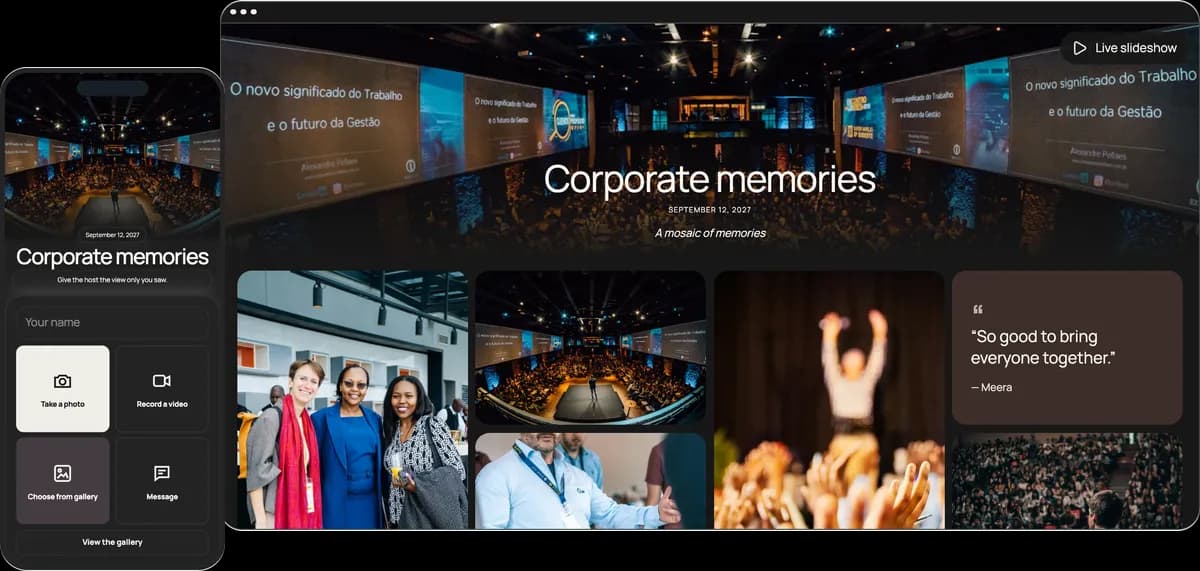

Attendees scan one QR code at registration and in every room, and add their photos, videos and messages to your private gallery. No app download required. No attendee sign-in required.
Start free. No app required.Attendees scan the QR code, pick their photos and videos, and upload them in seconds, between two sessions or in the coffee queue.
The same code works at the keynote, in the breakouts and at the coffee point.
Only attendees with the link can open it, and it stays out of search engines.
It opens in the phone’s browser, no app download required.
You can download every photo and video in original quality for your recap.
Set up in minutes, the week before or on the morning of day one.
Add the conference name and date, pick a theme, and create your event.
Print it for registration and the rooms, or send the link in the attendee email.
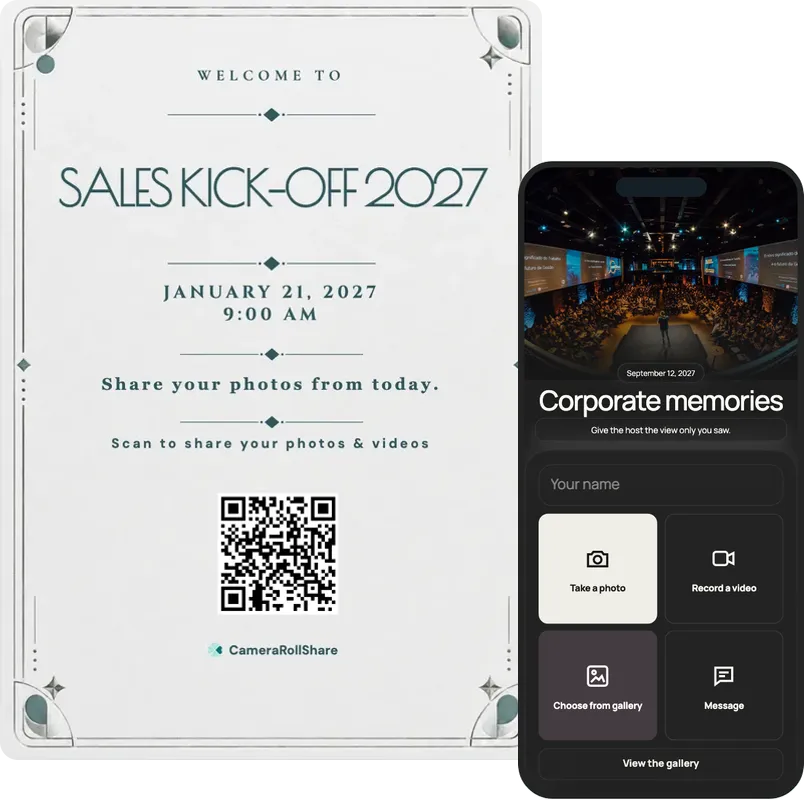
Put the slideshow on the lobby screens during breaks and at the closing, and attendees’ photos pop up as they share them.
One simple upload screen for guests. One beautiful gallery for everyone invited.
Design Days 2026
October 15, 2026
A mosaic of memories


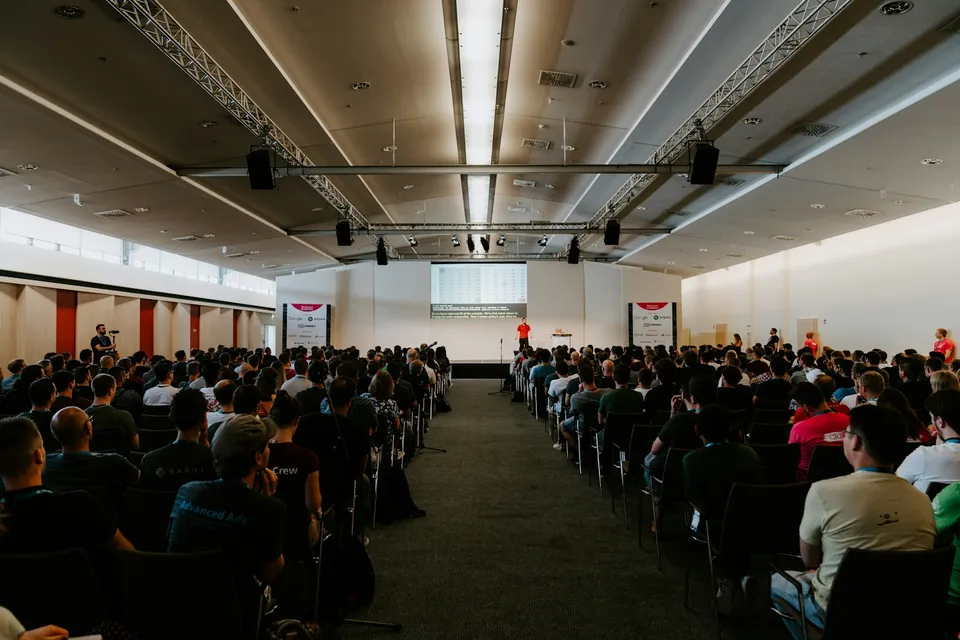

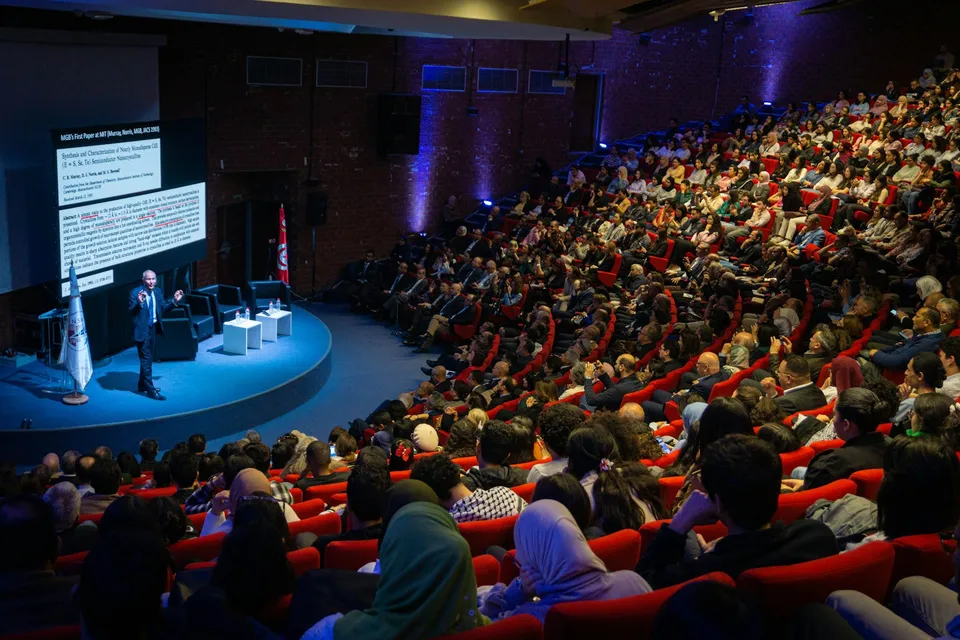
Choose a style to see your upload page and gallery change
72 possible combinations of themes and layouts
Create your own eventNo app to install, no account to make, and no separate link for each room. One code takes attendees straight to your private gallery, whether they scan it at registration on day one or at the closing on day three.
Keynotes on day one, breakouts on day two, the closing on day three. One event and one gallery cover all of it, and the same QR code works in every room, so attendees never need a new link. The gallery stays open until you close it, so late photos still find their way in.
Invite colleagues from your events team by email. Moderators approve and hide uploads alongside you, so one person can watch the gallery during the sessions while another looks after the lobby screens. Viewers can follow along without changing anything.
Your gallery is private: only attendees with your QR code or link can open it, and it never shows up in search engines. Turn on approval and nothing appears in the gallery or on the lobby screens until your team has checked it. Hide anything later, and download everything in original quality.
Attendees scan wherever they are: in the keynote hall, in a breakout room or in the queue for coffee. The upload page opens in any phone’s browser, iPhone or Android, in English, French or Italian, which suits a crowd that flew in from several countries.
A conference day has six moments worth asking for. Here is where to put the QR code at each one and which shots to ask attendees for. The times are an example: swap in your own agenda.
Attendees scan when they stand still with a phone in hand. At a conference that means queues, breaks and the minutes before a session starts. These five spots cover most of the day.
Everyone stops there for a badge, so a sign beside the desk gets scanned while the queue moves. Running an internal company conference? Our page on corporate event photo sharing covers that case.
Put the QR code image on the first and last slide, and on a sign at each door of the main hall. People scan while they find a seat or wait for the applause to end.
A small sign at each room is enough. It’s the same code everywhere, so attendees who move between tracks never have to look for a new link.
Breaks are when the phones come out. A sign on the table, and the lobby screens showing the live slideshow, turn the queue into a minute of uploading.
Take the same QR code to the evening reception. The gallery stays open, so the photos from the after-party land next to the ones from the sessions.
After you create your event, pick a printable QR card template and add your own names and date.
Most conference photos never leave the phones they were taken on. A hashtag only collects what people remember to post, a shared folder needs a sign-in before anyone can add to it, and a group chat shrinks every picture and buries it within the hour.
A QR code does the asking for you. Attendees scan it at registration, in the room or by the coffee, add their photos at full size, and everything lands in one private gallery that your team can moderate. No folder permissions to manage, and no reminder emails.
Premium+ covers up to 2,000 uploads per event. A very large conference can run one event per day, each with its own QR code and gallery. Here’s the full comparison.
| Feature |  CameraRollShare | A hashtag and a shared folder |
|---|---|---|
| App download needed | No, it opens in the phone’s browser | Often an app, or a sign-in to open the folder |
| Photo quality | Original files, as attendees took them | Often compressed |
| All photos in one place | Yes, one private gallery for every day and room | Spread across feeds, chats and folders |
| Control what’s shown | Approve first or hide any upload | Anything posted stays visible |
| Live slideshow on lobby screens | New uploads join within about 15 seconds | Not possible |
| Help from your team | Invite co-hosts as moderators by email | Shared logins, or no moderation |
| Uploads | Up to 2,000 per event, paid once | Storage caps or a monthly fee |
| Videos and messages | Short videos and written messages too | Mostly photos |
| Attendee privacy | Private gallery, hidden on request | Public posts |
| Printable QR code signs | Ready-made templates to print | Not included |
| Download everything | One ZIP with every original | One file at a time |
| Setup time | A few minutes | Varies, often fiddly |
We’re here to help hosts bring their guests’ photos together and make every event more memorable.
“We ran a three-day conference with one QR code at registration and on every breakout room door. Attendees uploaded between sessions, and on the last afternoon the lobby screens were full of photos from all three days.”
“As a co-host on our events team, I moderated during the keynotes. We turned on approval before the closing slideshow, hid a couple of blurry shots, and everything else reached the lobby screens within about 15 seconds.”
“The official photographer can’t be in every room, so we asked attendees for coffee-break and networking shots. Afterwards we downloaded the whole gallery as one ZIP in original quality and picked the best for our recap.”
You create your conference’s page and get one QR code and one link. Attendees scan the code with their phone camera, the upload page opens in their browser, and they add photos, videos or a written message in a few taps. Everything lands in one private gallery that you, and anyone you invite to help, can see straight away.
No. The page opens in the phone’s own browser, on iPhone and Android, so there is nothing to install and no account or password. Adding a name is optional. That matters at a conference, where nobody wants to set up an app between two sessions or in the queue for coffee.
It’s a one-time price per event, with no subscription. The Free Trial covers 50 uploads, Premium is €19.95 for 500 and Premium+ is €39.95 for 2,000. A conference with hundreds of attendees usually needs Premium+. If yours is very large, you can run one event per day, each with its own QR code and gallery. You can upgrade a Premium event to Premium+ for €20 while it’s open, and if your event never receives an upload, you’re eligible for a full refund.
Yes. Attendees can take a photo, record a video, choose several photos and videos from their camera roll at once, or write a message. Photos can be up to 50 MB and videos up to 250 MB and three minutes, in JPG, PNG, WebP, MP4, MOV or WebM. Written messages become a guestbook that you can export as a PDF.
Set it up a week or two before, so the link can go in the attendee email and on the agenda. The QR code and link are ready the moment you create the event: download the code as an image for your slides, or pick a printable QR card template. On the day, put it where people wait: the registration desk, the door of each room, the coffee and lunch tables, and on the opening and closing slides.
Yes. One event, one QR code and one gallery collect everything from the opening keynote to every breakout room and the closing. The gallery stays open until you close it, so attendees can keep sharing photos in the days after. If your conference is very large, you can create one event per day instead, each with its own QR code and gallery.
Yes. Turn on approval and nothing appears in the gallery or on the slideshow until you approve it, or leave it off and hide anything later; hidden uploads can be restored. You can also invite colleagues from your events team by email as moderators, so they can manage uploads while you run the day. Viewers get a read-only dashboard.
Yes. Open the live slideshow on a laptop connected to a TV or projector, and new uploads join it within about 15 seconds. It works well on the lobby screens during breaks and at the closing. The QR code stays in the corner, so more attendees join in, and anything you hide drops off the screen.
The gallery is private: it isn’t listed anywhere, guest pages are kept out of search engines, and you can turn guest viewing off. Put a short photo notice beside the QR code at registration, and hide any photo on request. Use attendees’ photos in your recap or on social media only with their consent.
Download every photo and video as one ZIP file in original quality, and export written messages as a guestbook PDF. Files are kept for 14 days after the event closes on the Free Trial, 30 on Premium and 60 on Premium+, so download them while the conference is still fresh.
They’re not all the same. Some make attendees download an app first, some can’t follow a conference across several days and rooms, and some keep charging you every month. Here’s what’s worth checking before you pick one.
Ask attendees to download an app between two sessions and most won’t. Look for one that opens straight in the phone’s browser: point the camera at the code, tap, upload.
A conference has several days, tracks and rooms. You want one QR code and one gallery for all of them, not a new link to print and explain for each session.
Photos on the lobby screens are public to the whole venue. You should be able to approve each upload before it appears, and hide anything later in one tap.
The gallery should be private and kept out of search engines, and anyone who doesn’t want to appear should be able to ask for their photos to be hidden. Use attendees’ photos in the recap or on social media only with their consent.
Know the upload limit before the event. Premium+ covers up to 2,000 uploads per event, and a very large conference can run one event per day.
A conference happens once a year, so the bill should too. Watch out for monthly plans that keep charging long after the closing. Pay once for the event and be done.
CameraRollShare ticks all six.


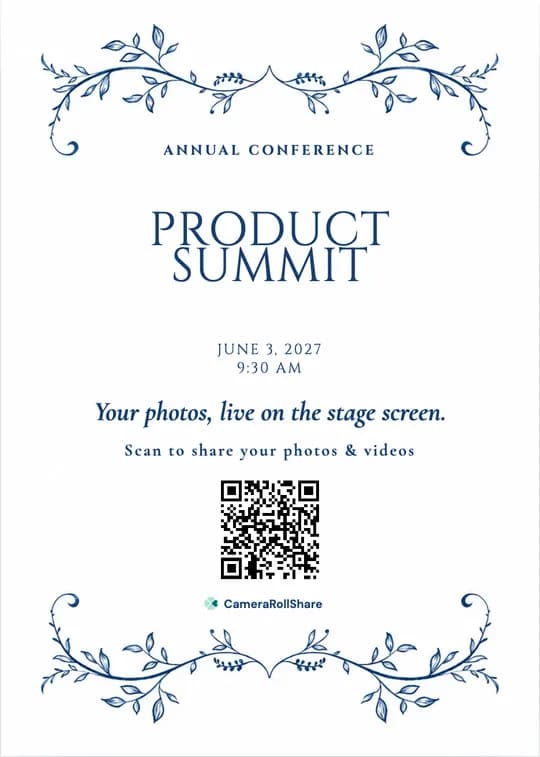

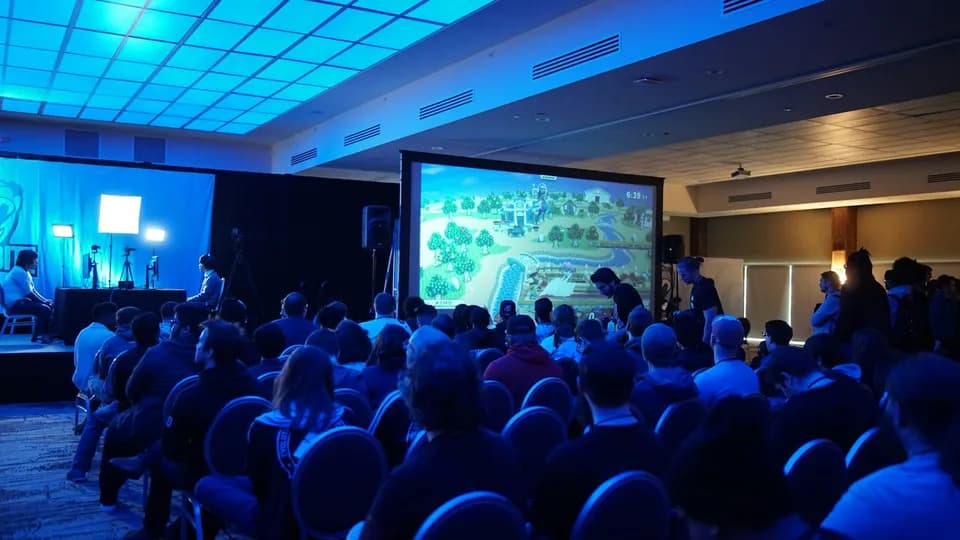
The official photographer can’t be in every room. So put one QR code at registration and in each session instead. Attendees point their phone camera at it and add their photos and videos in a few taps. No app, no sign-up. The coffee-break and networking shots arrive in one private gallery, in full quality, ready for your recap.
Create your conference galleryFree to try · No app for attendees · Pay once, no subscription